> ## Documentation Index
> Fetch the complete documentation index at: https://docs.codenullapp.com/llms.txt
> Use this file to discover all available pages before exploring further.
# Client Rules
> In the condition to access the data item data, you need to use the dataItem keyword in the path, for instance, if we want to access the titulo property you can
## Condition
In the condition to access the data item data, you need to use the `dataItem` keyword in the path, for instance, if we want to access the titulo property you can use `dataItem.Path`
## Result types
### Hide columns in Datagrid
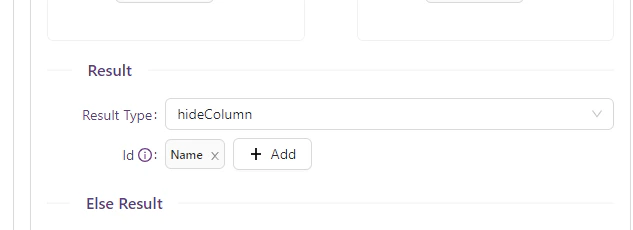
If you want to hide a column in a Datagrid go to add a new client rule and select the type HideColumn and add the Ids (code of the column) you want to hide
### Background row color and Cell Color
Add the possibility to set a background color to the row or cell color depending on specific business logic, using client rules.
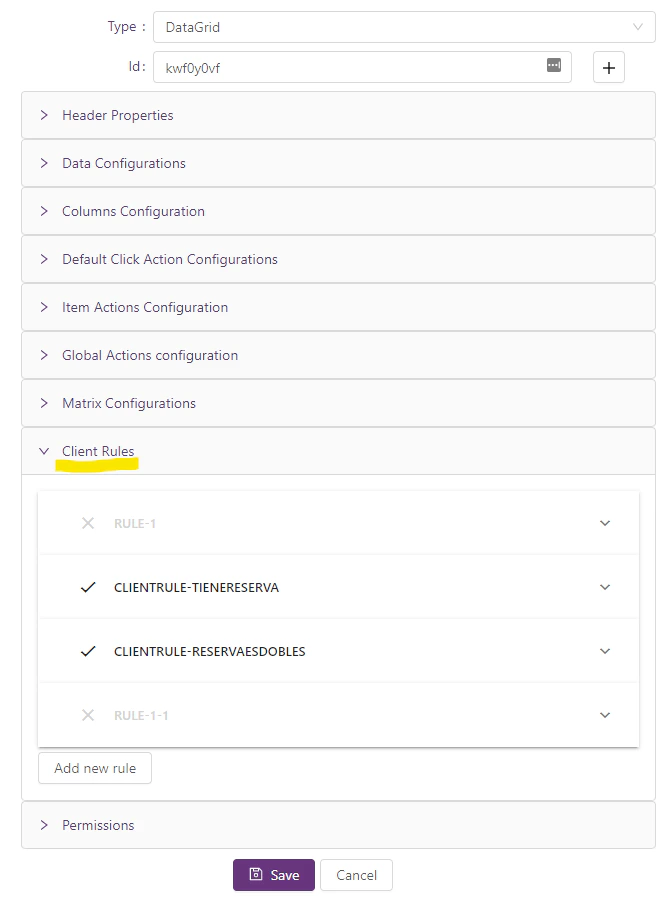
Go to the designer, edit the Datagrid and go to the client Rules section
*
* Add new client rules as always, click on \*Add new rule
* Fill up all the fields as normal client rule, but in the Result Type you will find two new fields:
* **setCellBackgroundColor** (Color of the cell)
1. *Color*: This is the hexadecimal of the color you want to use (e.g. #34913E)
2. *Column Id or Code*: you can put the specific Column you want to set the color by ColumnId or Code. (it is not required, you can handle it via logic with the client Rule, it is just in case it is needed)
* **setRowBackgroundColor** (Color of the row)
1. *Color*: This is the hexadecimal of the color you want to use (e.g. #34913E)

 ### Background row color and Cell Color
Add the possibility to set a background color to the row or cell color depending on specific business logic, using client rules.
Go to the designer, edit the Datagrid and go to the client Rules section
*
### Background row color and Cell Color
Add the possibility to set a background color to the row or cell color depending on specific business logic, using client rules.
Go to the designer, edit the Datagrid and go to the client Rules section
*  * Add new client rules as always, click on \*Add new rule
* Fill up all the fields as normal client rule, but in the Result Type you will find two new fields:
* **setCellBackgroundColor** (Color of the cell)
1. *Color*: This is the hexadecimal of the color you want to use (e.g. #34913E)
2. *Column Id or Code*: you can put the specific Column you want to set the color by ColumnId or Code. (it is not required, you can handle it via logic with the client Rule, it is just in case it is needed)
* **setRowBackgroundColor** (Color of the row)
1. *Color*: This is the hexadecimal of the color you want to use (e.g. #34913E)
* Add new client rules as always, click on \*Add new rule
* Fill up all the fields as normal client rule, but in the Result Type you will find two new fields:
* **setCellBackgroundColor** (Color of the cell)
1. *Color*: This is the hexadecimal of the color you want to use (e.g. #34913E)
2. *Column Id or Code*: you can put the specific Column you want to set the color by ColumnId or Code. (it is not required, you can handle it via logic with the client Rule, it is just in case it is needed)
* **setRowBackgroundColor** (Color of the row)
1. *Color*: This is the hexadecimal of the color you want to use (e.g. #34913E)