> ## Documentation Index
> Fetch the complete documentation index at: https://docs.codenullapp.com/llms.txt
> Use this file to discover all available pages before exploring further.
# Debugging
> There are three ways to debug your applications
There are three ways to debug your applications
* **Enabling debug mode** (Only for web applications)
* **Server Logs** (Web and Mobile)
* **Custom Logs** (Web and Mobile)
## Debug Mode
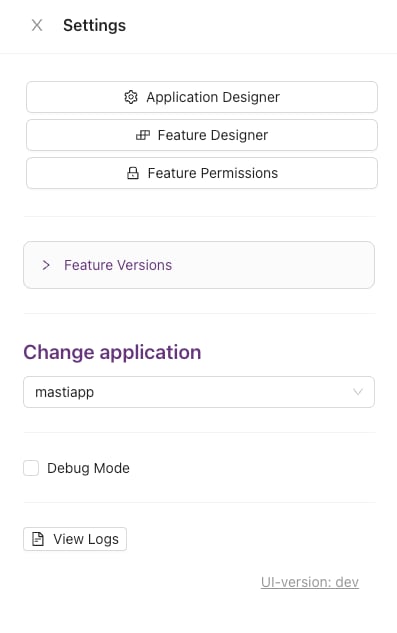
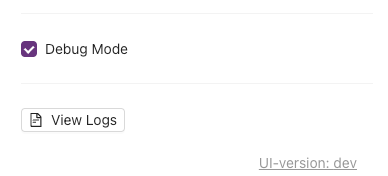
This option allows you to debug your application using the Browser console tool. To enable this go to the Settings panel and enable on Debug Mode checkbox
Open the console dev tools in your browser and you will start to see the logs in the console
## Server Logs
To enable this please contact us to enable this option. After this option is properly enabled you can go to the Settings panel and click on "View Logs"
You will start receiving logs from Azure
## Custom Logs
This option is useful when you need to debug remotely (for instance from the server or a mobile client)
This option is only available in version 2.1.9 or greater
To see this option you need to go to the Settings panel and click on "View Logs" button
You will start receiving logs from custom logs
### How to send custom logs
When you are writing your hooks or client rules you can use the `sendLog` function
#### Hooks
```javascript theme={null}
const sendLog = require("./utils/sendNotification").sendLog;
//You can send plain text
sendLog("My custom log message");
// or also objects
sendLog({ name: "John", lastName: "Doe"});
```
#### Client Rules (Mobile and Web)
```javascript theme={null}
//You can send plain text
helpers.sendLog("My custom log message");
// or also objects
helpers.sendLog({ name: "John", lastName: "Doe"});
```
## Graphql Logs
To see this option you need to go to the Settings panel and click on "View Logs" button
After you have activated the **debug mode** you can see every request of graphql (API) that is made in the application, it can be from the web application or mobile app, and everything will appear in the same window of the Custom Logs.
What will you see?
* Query or mutation executed
* Variables sent
* Respond data

 Open the console dev tools in your browser and you will start to see the logs in the console
 You will start receiving logs from Azure


