Considerations
- This is in preview mode and it might generate incorrect data or configurations.
- It is free so far but we are evaluating the cost impact to determine the best pricing schema for clients and us
Using AI Components
To create components using AI assistance, follow these steps:- Access the AI Interface: Enter the AI interface within your application development environment. This interface provides a platform for interacting with the AI to generate components.
- Specify Component Requirements: Clearly define the requirements of the component you wish to create. For example, if you need a component for querying customers, specify the desired functionality and any additional details such as the number of columns to display.
- Interact with AI: Engage with the AI by asking it to generate the desired component based on your specifications. You can communicate with the AI using natural language queries or predefined commands.
- Review Generated JSON: Once the AI has processed your request, it will generate the corresponding JSON representation of the requested component. Review the generated JSON to ensure it meets your requirements.
- Preview Component (Optional): Some AI interfaces may offer a preview functionality, allowing you to visualize the generated component before integrating it into your application. Take advantage of this feature to ensure the component meets your expectations.
- Integrate JSON into Your App: Once satisfied with the generated component, you can directly integrate the JSON representation into your application code. Copy the JSON and paste it into the appropriate configuration or code file within your project.
how to use AI assistance
Click in any “Add a new component” button, then you will see the option Ask AI\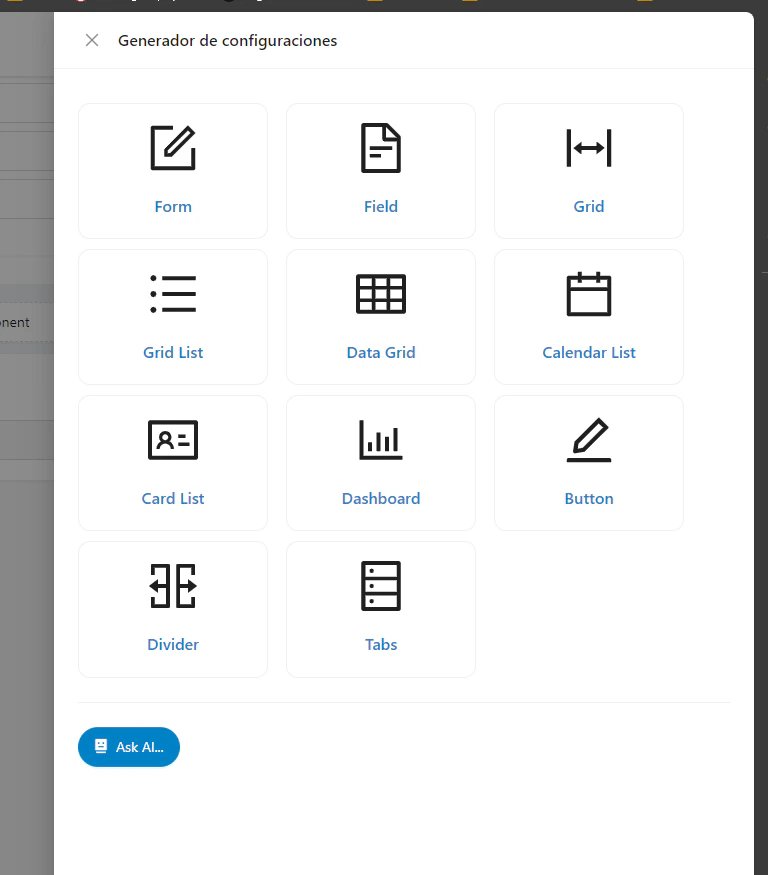
Select the generated Component (Clicking on Open this button) and integrate it into your application If you want to see the generated JSON before. Then click on Show JSON and copy and modify it if needed